Leaderboard
-
heartless
Members1Points4647Posts -
gbhrps
Members1Points1190Posts -
Numbchux
Members1Points7630Posts -
charles_thomas
Members1Points85Posts


Popular Content
Showing content with the highest reputation on 02/04/20 in all areas
-
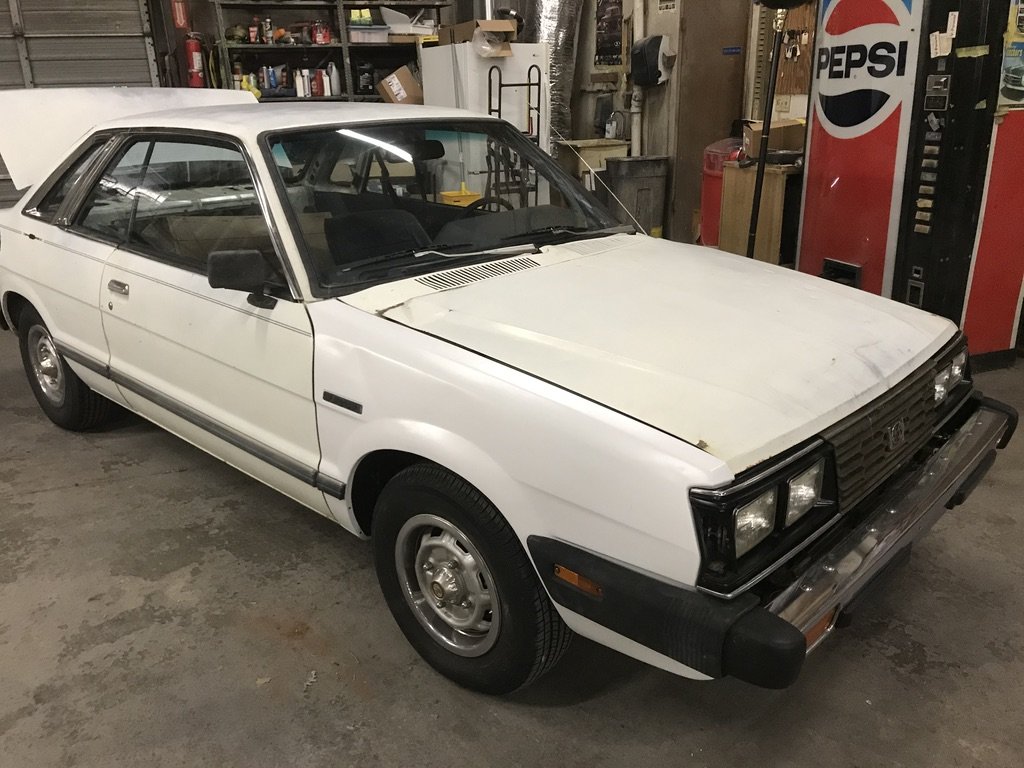
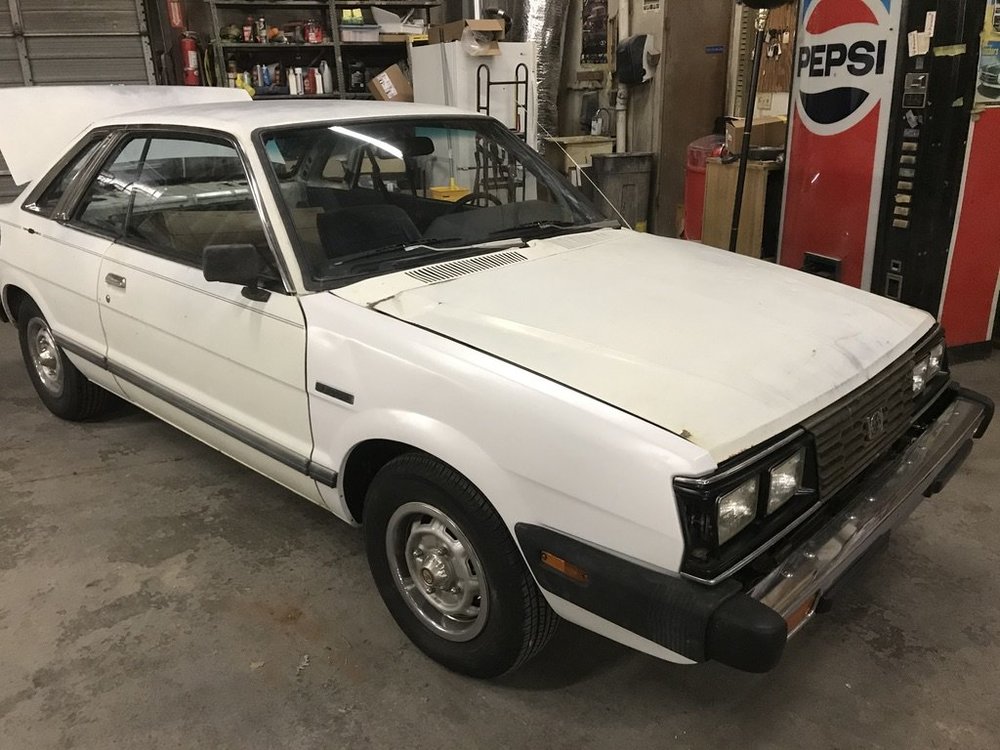
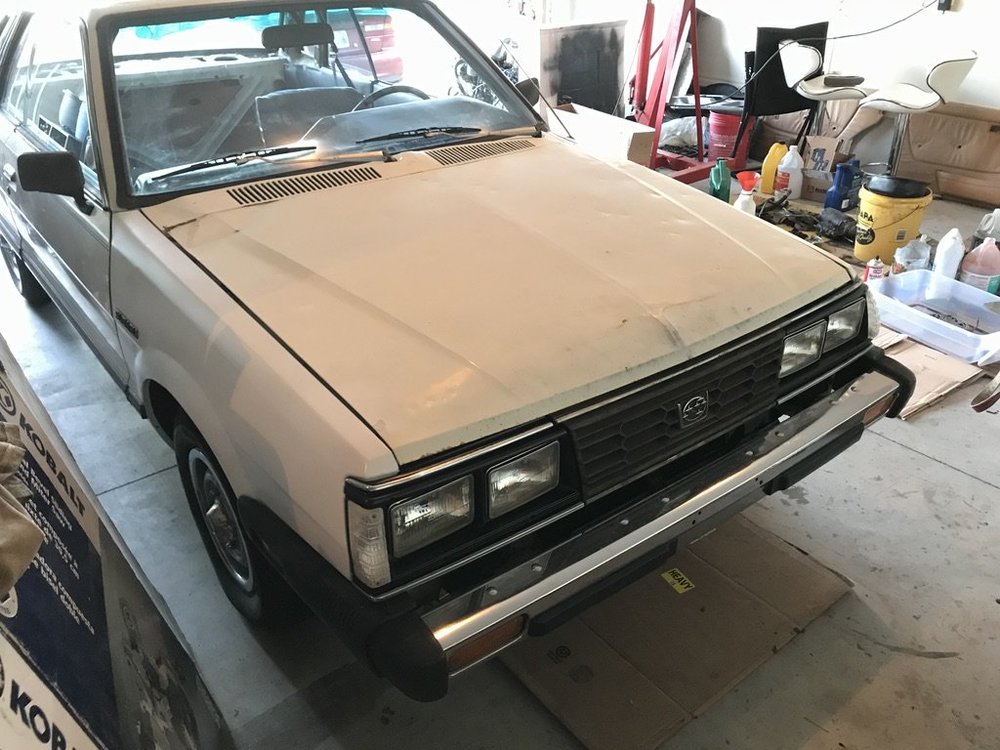
1 point1 pointFor now, try a bottle of Trans-X. It is made for Auto trans and Power Steering. Just top it off with it and add when needed. Even Walmart has it. Get a pump from a junk yard or you can get a seal kit to rebuild yours. I learned about Trans-X here and it worked wonders on our 97 RHD.1 point1 pointLadies and Gentlemen, This is a heads up for late model subie owners with factory GPS headunits. On a recent trip my factory Harmon Kardon/GPS unit developed a mind of its own and went absolutely nuts, changing parameters, picking destination points, changing radio settings, and even at times refusing to accept inputs or even to be turned off. Once at our destination, some research lead me to believe that a software update on the headunit was required. At Peoria Subaru, Arizona, it was discovered that my portable Garmin GPS was the cause. Sitting on the dash, the Garmin's power cord was crossing the display screen of the subie's headunit and inducing an electrical current to the touch screen. This was the cause of the subie's headunit craziness. After rerouting the power cord away from the dash touch screen (put a business card in the crease between the dash vent and the dash and looped the Garmin's power cord around it) there were no more issues. So, if you have a dash camera, radar detector, or portable GPS, don't allow its power cord to cross the car's touch screen. Some may ask why I use the Garmin when the car's GPS should be enough. My passenger can input changes into the Garmin while the car is moving, while the car's GPS will only allow it by voice. And those voice commands take more time, give few options, and frequently end up going in circles. Add to that ... I have 4 vehicles, and I move the Garmin vehicle to vehicle as needed. One GPS zoomed in and one zoomed out gives fewer surprises at intersections and exits.1 point1 pointWell chaps, she is all done! Got the rest of everything put on today and drove it home. Drives just like it did before.. straight, true and zippy. The fender I painted with a rattle can of Rustoleum white satin. It's at least white but I will try to get something a bit closer to dust it with in the future. Also painted the black on the headlight surrounds while they were off. Time to finally try to get through this whole tank of fuel and figure out my MPGs. In case anyone might be wondering, we estimate the hit velocity somewhere in the upper teens, in MPH. The full parts list is: Core support Fender Headlamp assembly Crank pulley Radiator Battery Rad Fan (I had) Headlight surround (I had) Grille (I had) Straightened the existing hood Total parts bill was shy of $500. Shop estimated $2-4k if someone had just brought it in wanting it fixed. Good thing I had plenty of time to put into it! I elected not to replace any A/C parts as I see that as a *maybe* project down the road.
 1 pointPlug an OBD reader in and read the coolant temperature, and compare it to an infrared temp scanner pointed at the coolant bridge (if you don't have these tools, combined investment of $20-30 on amazon and invaluable diagnostic tools). If they agree, that's not your problem. Then connect the test mode connectors to make sure the circuit operates as it should. A/C will warrant fan operation, and defrost engages A/C. Depending on the conditions, it's not improbable that the engine really is warm enough to warrant low speed fan operation.1 point1 point